MIS Report
The MIS Report Module is a powerful reporting tool within our product that enables users to generate comprehensive reports based on document category, project, and subtype. These reports cover essential statistics related to documents processed in the application, including processing time, export time, and document processing accuracy at the MI/QC stage. This documentation provides step-by-step guidance on how to utilize the MIS Report Module effectively to access valuable insights.
Key Features of the MIS Report Module
The MIS Report Module encompasses the following key features:
Document-Based Reports: Users can generate reports based on document category, project, and subtype, providing a granular view of document processing statistics.
Time Metrics Tracking: The module includes reports that highlight file upload date and time, processing time, and export time, enabling users to assess processing efficiency.
Accuracy Assessment: Users can access reports that display document processing accuracy at the MI and QC stages, ensuring data quality monitoring.
Accessing MIS Report
To access the MIS Report page, follow these steps:
-
In the main menu, under Document Monitoring, click MIS Report. The MIS Report page opens with four different tabs as shown below.
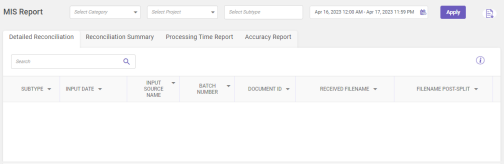
Following tabs are available on the MIS Report page:
-
Detailed Reconciliation
-
Reconciliation Summary
-
Processing Time Report
-
Accuracy Report
-
-
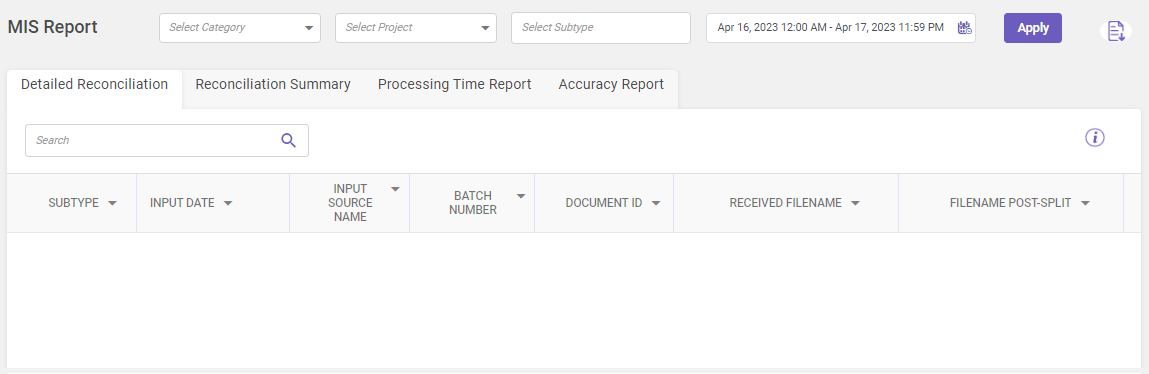
Select the category, project, and subtype from the drop-down to view the records for a pre-defined duration or use the
 icon to specify the required duration and then click Apply.
Note
-
It is mandatory to select the category and project to display the records.
-
You can view MIS Reports for both active and inactive category, project, and subtype.
All records matching the given criteria are displayed in the grid. Utilize the Search field to filter and find specific records within the displayed grid (Refer searching data).
-
Click on the buttons inside the tabbed menu to know more.
Displays the statistics related to the number of documents in process at each stage. For more details about document processing stages, refer process stages.
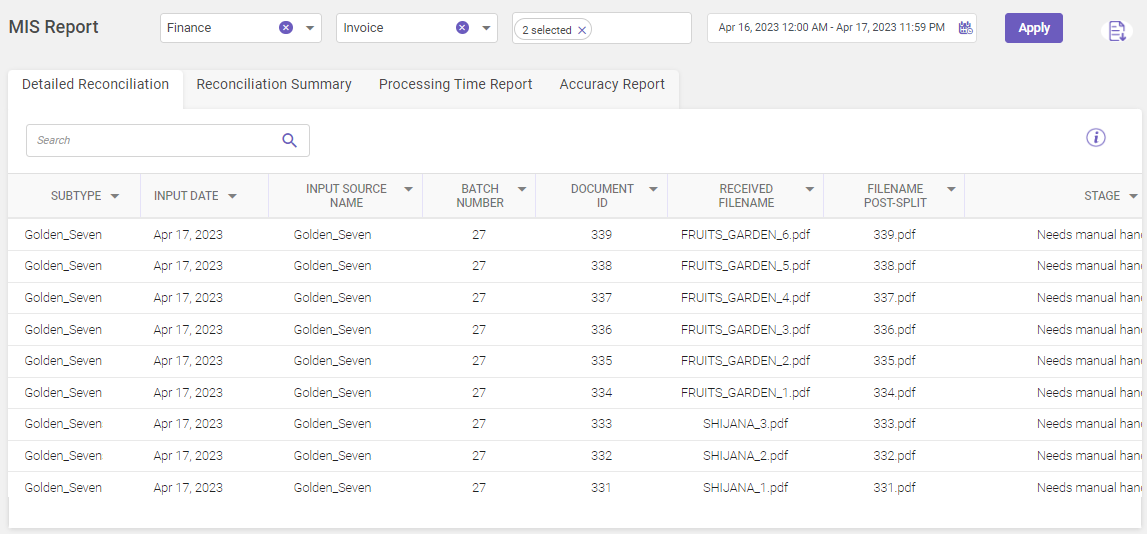
Column header descriptions
|
COLUMN NAME |
DESCRIPTION |
|---|---|
|
Subtype |
Displays the subtype name. |
|
Input Date |
Date at which the file was uploaded for processing. |
|
Input Source Name |
Displays the source name. |
|
Batch Number |
Displays the batch number. |
|
Document ID |
Displays the document ID. |
|
Received Filename |
Displays the file name received for processing. |
|
Filename Post Split |
Displays the file name after document split. |
|
Stage |
Displays the name of the stage where the file is currently being processed. |
You can also view the column descriptions by clicking the Column Description  icon.
The Reconciliation Summary provides complete details of the count of files received for processing for a selected subtype and duration. The summary includes an individual count of files in process at each stage post-split.
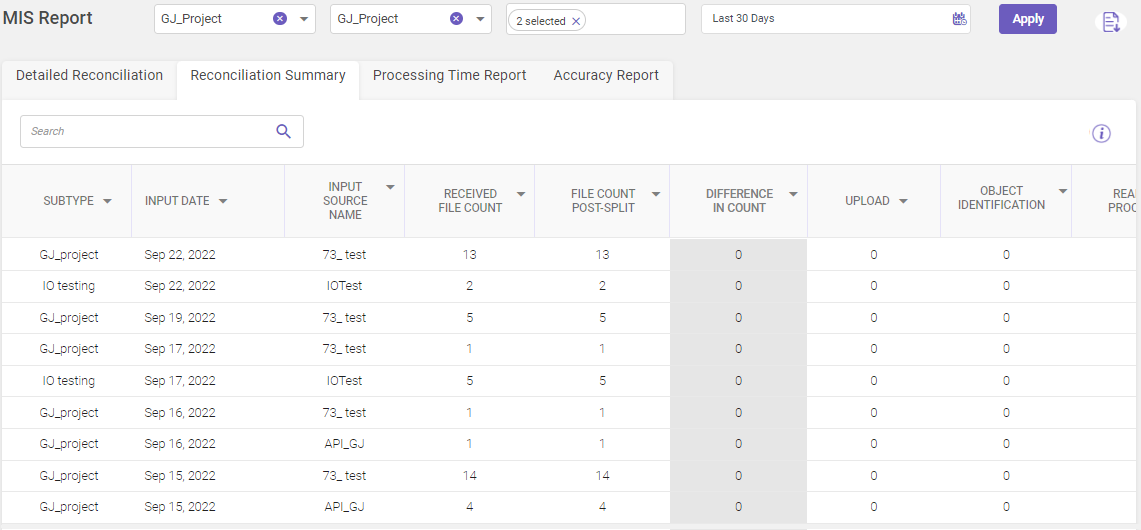
Column header descriptions
|
COLUMN NAME |
DESCRIPTION |
|---|---|
|
Subtype |
Displays the subtype name. |
|
Input Date |
Date at which the file was uploaded for processing. |
|
Input Source Name |
Displays the source name. |
|
Received File Count |
Displays the file count received for processing. |
|
File Count Post Split |
Displays the total file count post the splitting process. |
|
Difference in Count |
Displays the count of any difference observed during the processing of the file. |
|
Upload |
Displays the file is currently in process at the uploaded stage. |
|
Object Identification |
Displays the file is currently undergoing object identification. |
|
Ready for Processing |
Displays the file is currently undergoing image processing. |
|
Pre-processing |
Displays the file is currently in process at perform OCR stage. |
|
Source Identified |
Displays the file is currently undergoing source identification. |
|
Data Extraction |
Displays the file is currently in process at extract data stage. |
|
Auto Split Completed |
Displays the file is currently undergoing auto splitting. |
|
Needs Manual Handling |
Displays the file is currently being manually processed. |
|
Ready for Quality Check |
Displays the file is currently in process at quality control stage. |
|
Needs Manual Splitting |
Displays the file is currently being manually split. |
|
Ready to Export |
Displays the file is currently in process at export data stage. |
|
Document Rejected |
Displays the file that is being rejected. |
|
Others |
Displays the file is currently in process at any other stage. |
|
Document Exported |
Displays the file that is being exported. |
You can also view the column descriptions by clicking the Column Description icon.
The Processing Time Report displays the file upload date and time along with its processing time from its upload into the system till its export. It also gives the time difference between the exported file date and time and the uploaded date and time of the file.
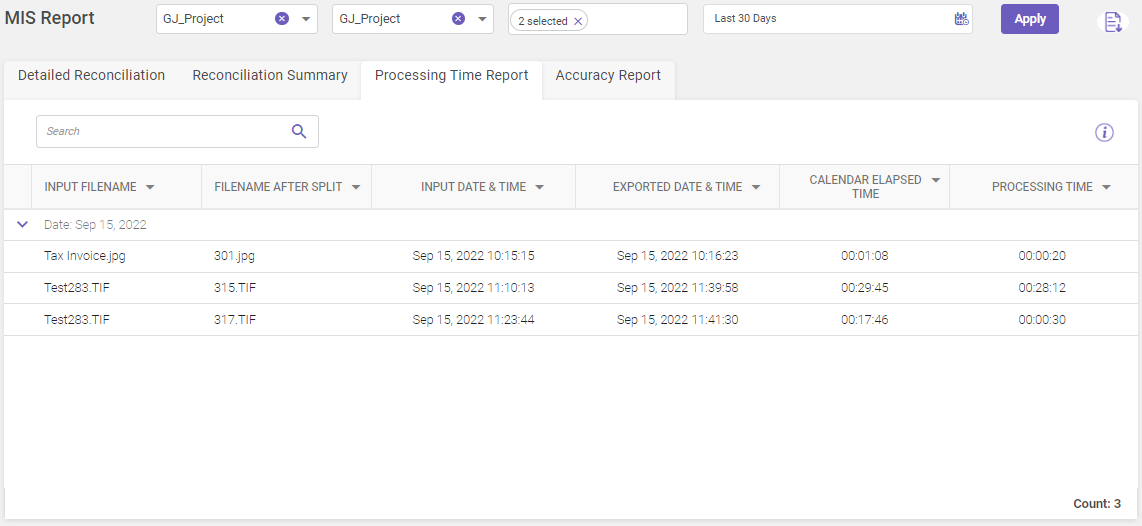
Column header descriptions
|
COLUMN NAME |
DESCRIPTION |
|---|---|
|
Input Filename |
Displays the name of the file when it was uploaded for processing. |
|
Filename After Split |
Displays the name of the file after document splitting. |
|
Input Date & Time |
Displays the date and time when the file was uploaded for processing. |
|
Exported Date & Time |
Displays the file exported date and time. |
|
Calender Elapsed Time |
Displays the time difference between the exported and input date and time of the file. |
|
Processing Time |
Displays the processing time taken by the file from uploading till its export. |
You can also view the column descriptions by clicking the Column Description icon.
Displays the accuracy at which a document is processed at the MI and QC stages, respectively.
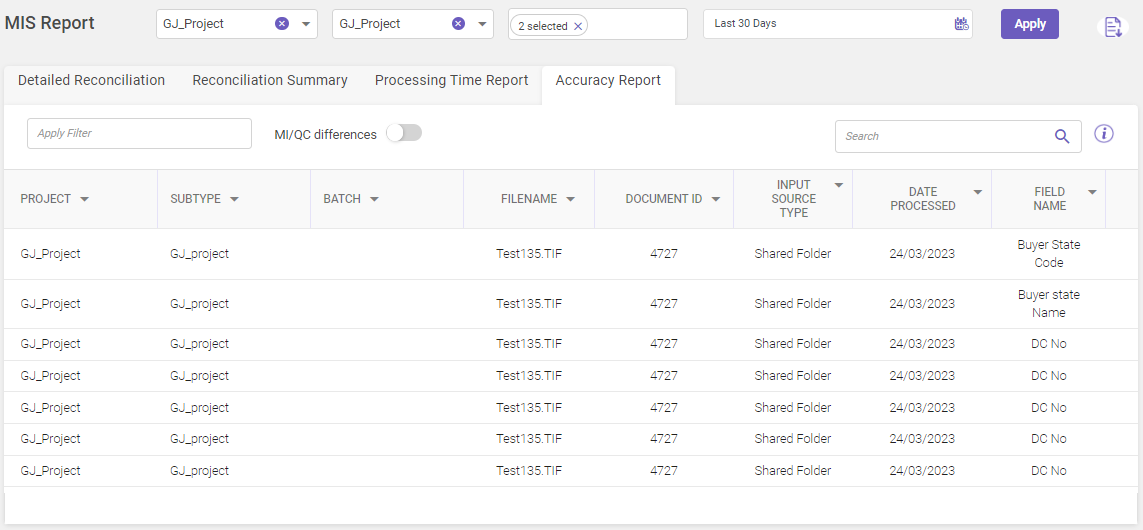
Column header descriptions
|
COLUMN NAME |
DESCRIPTION |
|---|---|
| Project | Displays the project name. |
| Subtype | Displays the subtype name. |
| Batch | Displays the batch name. |
| Filename | Displays the file name. |
| Document ID | Displays the document ID. |
| Input Source Type | Displays the name of the input source type. For details about each input source type, refer input types. |
| Date Processed | Displays the processing date of the file. |
| Field Name | Displays the name of the field whose value is to be extracted. |
| Header/Detail | Displays the location from where the value is extracted (H=Header & D=Detail). |
| Row Number | Displays the row number from where the value is extracted. |
| Extracted Value | Displays the extracted value. |
| Extracted Number | Displays the count of extracted value. |
| MI Value | Displays the extracted MI value. |
| MI User | Displays the name of the MI user. |
| QC Value | Displays the extracted QC value. |
| QC User | Displays the name of the QC user. |
| Export Value | Displays the exported value. |
| Export User | Displays the name of the user who exported the value. |
| MI Start Time | Displays the start time of manual handling process. |
| MI End Time | Displays the end time of manual handling process. |
| QC Start Time | Displays the start time of quality check process. |
| QC End Time | Displays the end time of quality check process. |
| Source Name | Displays the source name. |
| Coordinates | Displays the set coordinates. |
You can also view the column descriptions by clicking the Column Description icon.
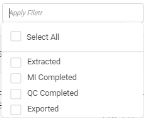
The filter option available on the Accuracy Report tab allows you to filter records based on the processing stages.
-
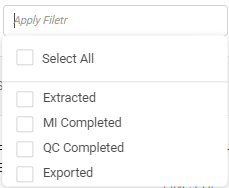
On the top-left corner of the Accuracy Report tab, click Apply Filter field (see the below image). The available options are Extracted, MI Completed, QC Completed, and Exported.
-
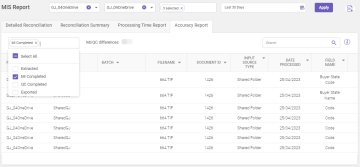
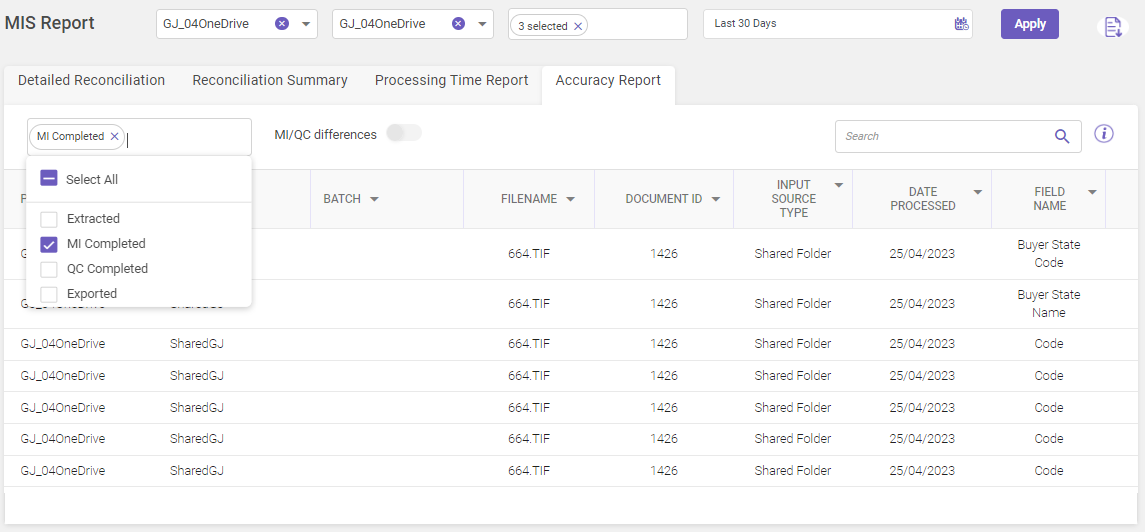
Select the required option. For example, we have selected the MI Completed option in the image below. When you select this option, all records with completed MI are displayed.
-
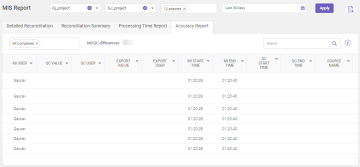
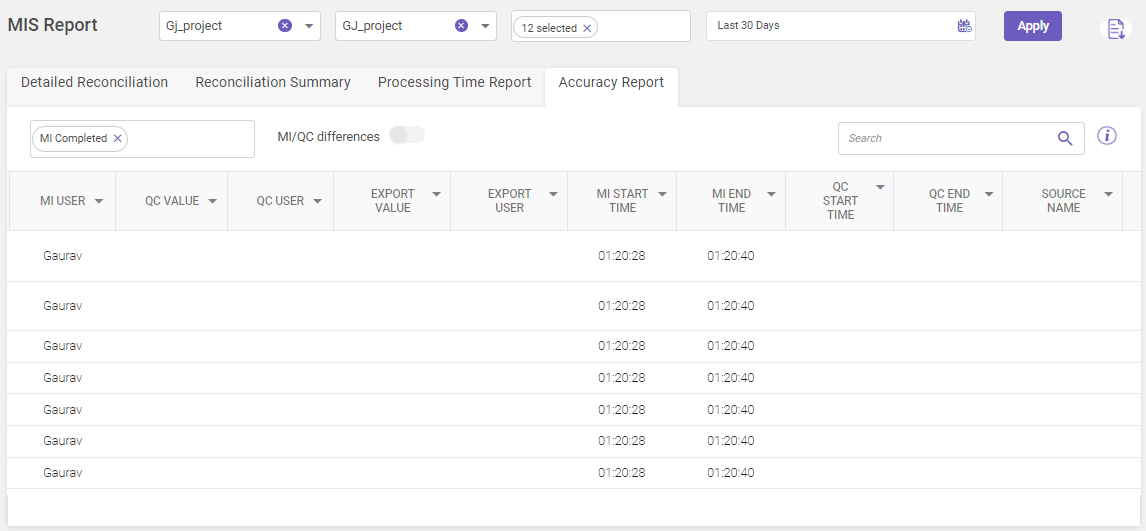
Scrolling horizontally across the Accuracy Report page, you can view the name of the user who performed the MI along with the MI Start Time and MI End Time.
-
Similarly, you can select other options from the Apply Filter field and view their respective information.
The MI/QC differences toggle switch lets you view the difference in time taken to perform MI and QC.
-
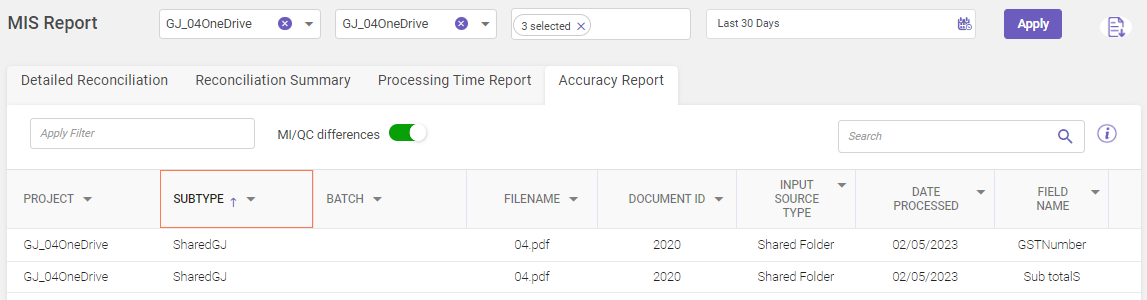
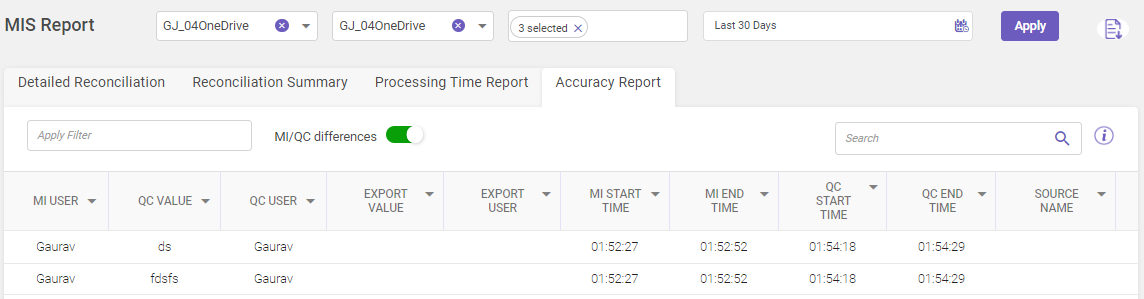
On the Accuracy Report tab, enable the MI/QC differences toggle switch next to the Apply Filter field (see the below image).

-
Scrolling horizontally across the Accuracy Report page, you can view the MI Start Time, MI End Time, QC Start Time, and QC End Time.

-
Click
 to export the MIS report.